Somo AI: Photo to Art & Video
For Android
I tried Somo AI: Photo to Art & Video as a quick way to turn ordinary pictures into more expressive visual pieces, and my first impression was that it is aimed at people who want creative results without learning a full drawing or video-editing program. It belongs to the Art & Design category, comes from Smart App Lab, and is free to install, although some optional purchases range from $0.99 to $49.99 per item. That combination makes it easy to test, but it also means I would approach it as a creative playground rather than an all-in-one professional studio.
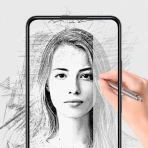
The basic appeal is simple: start with a photo, choose an artistic direction, and see how an AI treatment changes it. In practice, the interesting part is not merely getting a dramatic image. It is learning which source photos survive the transformation well, which styles preserve the subject, and when a generated result is better used as a social post, mood board, profile image, or starting point for another project. Somo AI works best when you treat the first result as a draft, not as a guaranteed finished masterpiece.
From the first install to a useful result
What to expect before you begin
The app is currently at version 1.2.0 and supports devices running Android 7.0 or later. It is rated for Everyone, so its general presentation is accessible rather than aimed at a specialist audience. The listing shows a 4.2 average from 56 ratings, with 7 written reviews and over 10K installs. Those figures suggest a small but active user base, so I would keep expectations realistic: this is a relatively young tool, not a mature replacement for established design software.
That is not necessarily a weakness. A focused AI art app can be more comfortable for a first experiment than a large editor filled with timelines, layers, brushes, masks, and export menus. If your goal is to make a stylized portrait for a chat profile, turn a travel photo into something more imaginative, or create a visual idea for a post, the lighter approach is appealing. If you need exact typography, repeatable brand colors, precise retouching, or frame-by-frame control, you will probably feel the limits quickly.
I would begin with a photo that has one obvious subject and reasonably clear separation from the background. A well-lit face, a pet sitting still, or an object photographed against a simple surface gives the transformation a better chance of preserving what matters. A crowded group photo, a dark indoor snapshot, or an image with several overlapping objects may produce a more unpredictable result. This is one of the most useful habits with AI image tools: choose the input carefully before blaming the style.
For a first test, avoid using the only copy of an important photograph as your creative experiment. Keep the original in your gallery and use a duplicate or a version you would not mind changing. That small precaution matters because an artistic conversion is not the same as a conventional filter. The result may alter facial details, clothing, textures, or background elements in ways that are attractive but not faithful.
Setting up a first project without overthinking it
After installing the app, I would keep the first session deliberately simple. Open the photo-to-art workflow, select a familiar picture, and look through the available visual directions before trying to make a final decision. New users often choose a style because its preview looks impressive, then discover that it clashes with their actual photo. A close portrait and a wide landscape do not necessarily benefit from the same treatment.
It helps to decide what you want to preserve. If the person’s identity is important, favor a style that leaves the face readable. If the purpose is atmosphere, such as a poster-like background or a dreamy travel image, a more aggressive transformation may be worthwhile. For an object photo, texture and silhouette may matter more than realistic color. Thinking in those terms gives you a clearer way to judge the output than simply asking whether it looks “cool.”
The app’s free entry point is useful here because you can evaluate its creative direction before spending anything. I would not purchase an optional item during the first few minutes. First check whether the basic workflow fits your taste, whether the output is sharp enough for your intended use, and whether the style choices suit the kinds of photos you actually take. In-app purchases can make sense for someone who uses the tool regularly, but they should follow a successful trial rather than replace one.
A practical workflow is to prepare three different source images: a face, a pet or object, and a wider scene. Run them through the same general style family and compare the results. This reveals more than testing one perfect selfie. You will see whether the app is strongest with portraits, whether background details become messy, and whether the look remains appealing when the subject changes. That comparison is a better buying decision than judging the app from a single lucky generation.
Your first meaningful success
For a reassuring first result, I would use a portrait with the eyes visible, moderate contrast, and little clutter behind the subject. Once the image is selected, choose a style that supports the mood you want rather than the most extreme option available. Give the first output a careful look at the face, hands, hair, and background edges. AI art often looks convincing at a glance while revealing small distortions when you inspect the details.
If the result works, save it for a specific purpose immediately. For example, crop it for a profile image, use it as a visual reference for a handmade project, or place it beside the original to decide which version communicates your mood better. That step turns the app from a novelty into part of a real workflow. I found that a generated image feels more valuable when I know where it will be used, even if the use is as modest as sending it to a friend.
You may also like

Amazon Kindle: Revolutionizing Digital Reading

Why OLX: Compras Online e Vendas Captivates Shoppers Worldwide

Unpacking the Strategy of Yalla Ludo's Jackaroo Mode

Why eBay's Mobile App Stands Out in Online Shopping

How Fishdom's Puzzle Mechanics Transform Your Aquarium Experience

Block Blast! The Perfect Puzzle for Busy Lives
One non-obvious advantage of this approach is that the original and transformed versions can serve different roles. The untouched photo preserves the memory, while the AI version can become a poster-like interpretation of it. I would not ask the generated image to replace the original, especially for meaningful family or travel pictures. Instead, I see it as a second creative layer that gives the same moment a different visual voice.
For a video-oriented experiment, begin with an image that has a strong central subject and a clear mood. Avoid expecting a still photograph to become a fully edited story with the control of a dedicated video application. The useful question is whether the motion treatment adds life to a picture for a short social clip or personal experiment. If you need precise duration, music synchronization, captions, transitions, or a carefully arranged sequence, a conventional mobile video editor remains the better tool.
Where first-time users may get confused
The phrase “AI art and video” can create broad expectations, so it is worth separating creative transformation from traditional editing. In a normal editor, I expect to control individual adjustments: brightness, crop, color balance, layers, text, and timing. With Somo AI, the central experience is more interpretive. You are asking the app to reimagine the source, which means the result may be visually exciting while also changing details you intended to keep.
That trade-off is especially important for faces and recognizable products. If you are preparing a catalog image, an official announcement, or a design where accuracy matters, I would use a conventional editor or a professional graphics application instead. Somo AI is better suited to expressive reinterpretation than factual presentation. It can help you explore a direction, but I would not rely on it for exact client deliverables without checking every visible detail.
Another point of confusion is style consistency. A single attractive image does not guarantee that several images will look like a coherent set. If you want a series for a social feed or a small presentation, test the same kind of source photo repeatedly and compare the visual language. Differences in lighting, pose, and background can make the results feel unrelated. For a consistent campaign, I would generate ideas here and finish the set in a tool with more predictable controls.
Quality can also be judged differently depending on where you plan to view the result. A striking image on a phone screen may show distracting artifacts when enlarged. Before treating a result as finished, zoom in on important areas and inspect edges, eyes, fingers, lettering, and repeated patterns. This is a simple but valuable check, particularly when the image is intended for printing or public use.
Privacy is another sensible consideration whenever personal photos are involved. I would start with non-sensitive images until I understand the app’s workflow and feel comfortable using it. Avoid experimenting first with documents, private family moments, or pictures containing information you would not want transformed. That is not a criticism unique to this app; it is a good habit for any service that processes personal imagery.
Three workflows that make the app more useful
My favorite practical use is turning a rough visual idea into a conversation starter. Suppose I want to plan a handmade birthday card, a room decoration, or a themed post. I can use an ordinary reference photo, apply an artistic direction, and show the result to a friend before investing time in the physical project. The generated image is not a blueprint, but it can quickly reveal whether the color mood and overall concept feel right.
A second useful workflow is comparing emotional tone rather than technical quality. Take the same photo and explore a restrained treatment alongside a more dramatic one. The question becomes: does this version feel calm, playful, mysterious, nostalgic, or energetic? This makes the app valuable for people who struggle to describe a visual idea in words. It can help communicate an intention to a designer, illustrator, or collaborator, even when the final work will be made elsewhere.
A third workflow is creating a small personal set from related images. Use pictures from one outing, one hobby, or one room and look for a shared style that makes them feel connected. Keep only the strongest outputs instead of saving every variation. This editing discipline is important because AI tools can produce many attractive-but-similar images, and a smaller selection usually feels more intentional than a gallery full of near duplicates.
There is also a useful trade-off between speed and control. Somo AI can shorten the distance between a photo and a stylized concept, which is excellent when inspiration matters more than precision. The cost is that you surrender some control over exactly what changes. A brush-based editor takes longer but lets you correct one area at a time. I would choose this app when I want possibilities quickly, and another editor when I already know the exact result I need.
Who should try it, and who should skip it
I would recommend Somo AI to casual creators, social media users, students exploring visual ideas, and anyone who enjoys seeing familiar photos interpreted in new ways. It is also a friendly entry point for people who find professional creative software intimidating. The free installation makes experimentation straightforward, while the Everyone rating supports its broad, approachable positioning.
I would be more cautious about recommending it to photographers who need faithful edits, illustrators who require control over every mark, or businesses preparing consistent branded assets. The app may help those users brainstorm, but it should not automatically become the final production environment. If your work depends on exact dimensions, repeatable output, editable layers, or careful typography, a dedicated design application will serve you better.
It is also not the best choice for someone who dislikes trial and error. AI transformations can involve subjective judgment, and the first result may be interesting without being usable. If you want a predictable filter that changes color or contrast while leaving the composition intact, a standard photo editor is likely to feel more dependable. The appeal here comes from interpretation, and interpretation naturally brings surprises.
Deciding whether the optional purchases are worthwhile
Because the app is free with optional purchases, I would evaluate value through repeated use rather than curiosity. Ask yourself whether you have a regular purpose for the outputs: perhaps weekly social artwork, concept references, personalized greetings, or a collection of themed images. If you only want to transform one picture once, paying for extras may not be worthwhile. If the workflow becomes part of your creative routine, the purchase decision is easier to judge from actual use.
I would also compare the cost with the amount of control you receive. Paying for access to more creative possibilities does not automatically make the app suitable for professional work. The important question is whether the available results save you time or help you reach ideas you could not easily create yourself. Keep the purchase tied to a clear outcome, such as completing a small project, rather than buying simply because a preview looks attractive.
My recommendation after using it
Somo AI: Photo to Art & Video is a pleasant choice for quick visual experimentation. I like it most as a bridge between an everyday photograph and a more imaginative concept. It lowers the barrier to trying artistic treatments, and it can produce a meaningful result quickly when the source image is chosen with care. Its strongest quality is immediacy: you can move from “I wonder what this would look like” to a shareable visual without studying a complicated creative suite.
My reservations are equally clear. The AI approach means less precision than a conventional editor, and not every transformation will respect the details that make a photograph important. Video-related expectations should also remain practical; this is not a substitute for a full timeline-based editing workflow. I would inspect outputs closely, keep originals safe, and avoid paying until the free experience proves useful for my own photos.
Overall, I would suggest installing it if you want a low-pressure way to explore AI photo effects, artistic concepts, and short visual experiments on a compatible Android device. Start with an ordinary image, choose a style based on your intended mood, compare the result with the original, and save only the versions that have a real purpose. If that process feels enjoyable, Somo AI can become a handy source of inspiration. If you need exact editing, reliable consistency, or professional production controls, I would keep it as a sketching companion and use a more traditional art or video app for the final work.
Pros
- Transforms photos into creative AI artwork with minimal effort.
- Offers multiple visual styles for experimenting with different looks.
- Can animate still images into short
- engaging video clips.
- Useful for creating social media posts
- profile images
- and digital art.
- Simple interface makes the main editing tools easy to discover.
Cons
- High-quality generations may require a subscription or paid credits.
- Results can vary widely depending on the source photo and prompt.
- AI processing may take longer when servers are busy.
- Some effects may produce distorted faces or unnatural details.
- Export options and output quality may be limited on the free plan.
FAQ
What is Somo AI: Photo to Art & Video used for?
Somo AI: Photo to Art & Video is designed for turning ordinary photos into stylized artwork and short creative videos. It typically offers AI-powered effects, artistic filters, templates, and image-to-video tools that can help users create social media posts, profile pictures, wallpapers, or visual experiments without advanced editing skills. Results and available tools may depend on the app version and your device.
How do I create artwork or a video with Somo AI?
After selecting a photo from your gallery or taking a new one, you can usually choose an artistic style, effect, or video template and let the app process the image. Some features may require cropping, adjusting the subject, or selecting additional settings before exporting. Processing time depends on the complexity of the effect, your internet connection, and whether the feature uses cloud-based AI.
Is Somo AI: Photo to Art & Video free to download and use?
The app may be available to download for free, but free access does not necessarily include every feature. Advanced styles, premium templates, higher-quality exports, faster processing, or an ad-free experience may be restricted behind in-app purchases or a subscription. Before confirming a purchase, check the current pricing, trial conditions, renewal terms, and cancellation instructions shown in the relevant app store.
Does Somo AI require an internet connection or access to my photos?
You will generally need to grant photo or media permissions if you want to import images from your device, and camera access may be requested for taking new pictures. Many AI effects also require an internet connection because images are processed online. Review the app’s permission requests and privacy information carefully, especially before uploading personal photos, children’s images, or pictures containing sensitive information.
Can I save and share the images or videos created in Somo AI?
Once processing is complete, Somo AI normally provides options to save creations to your device or share them through compatible social networks and messaging apps. Export quality, resolution, video length, and watermark rules can vary by tool or subscription level. It is worth checking the preview before exporting, since some templates may add branding or use formats that are better suited to certain platforms.