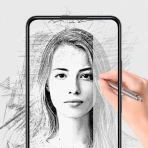
Sivu - AI Face Photo Video App
For Android
I tried Sivu - AI Face Photo Video App as a quick way to turn still images into short, attention-friendly videos, and my first impression was that it is aimed at people who want a result for social media without opening a full video editor. It belongs to the Art & Design category, but its practical appeal is closer to a lightweight creative tool for TikTok, Reels, and Shorts. You start with a photo, choose a visual direction, and let the app handle much of the movement and presentation.
That focus makes the app easy to understand. It is not trying to replace a complete editor for long videos, detailed timelines, or carefully controlled motion graphics. Instead, it is useful when the raw material is a single portrait or image and the goal is to make that image feel more alive. I found that distinction important because it sets the right expectation from the beginning: Sivu is most interesting as a fast idea generator and social-content shortcut, not as a traditional editing workstation.
The app is developed by MIOPS TEKNOLOJI ANONIM SIRKETI. It is free to install, carries a Teen content rating, and runs on Android 9 or later. Its current version is 1.32, while the app was released on July 8, 2025. Those details make it accessible to many Android users, although the Teen rating is a reminder that parents should still consider the type of images and trends a younger user may create or share.
How Sivu turns a photo into a short video
The central workflow is deliberately simple: bring in a suitable photo, select an effect or creative treatment, preview the result, and decide whether it is worth saving or sharing. That simplicity is the app’s strongest practical advantage. When I already have a clear image and only need a short visual for a post, I do not want to spend time building layers, keyframes, transitions, and audio tracks manually.
Portraits are the most obvious starting point, especially when the face is clear and the subject is not hidden by heavy shadows, unusual angles, or overlapping objects. A clean source image gives the animation system more useful visual information. I would also prepare several different photos rather than forcing one weak image through every available style. The best result usually comes from choosing the source first and the trend second, not the other way around.
A useful habit is to treat each generation as a draft rather than a finished piece. AI video effects can make an ordinary picture more noticeable, but the first version may not match the mood of the original image. I would compare the movement with the intended post: a playful effect may work for a casual story, while a polished portrait may need something restrained. This small decision prevents the app from turning a personal photo into a visual joke by accident.
Sivu is also more practical when the final clip has a specific job. For example, I could use a portrait to create a quick introduction for a creator profile, animate a product image for a small shop post, or give an old family photograph a short visual treatment before sharing it privately. In each case, the app is valuable because it reduces the distance between “I have one image” and “I have something that can fit a short-form feed.”
That does not mean every image becomes convincing video. A still picture contains less information than a real recording, so any automated motion has to interpret what should move and how. I would avoid expecting natural body movement, perfect facial acting, or the control available in a manually edited clip. The app is strongest when a stylized result is acceptable and speed matters more than exact realism.
What the free starting point means
The free price is important because it lets a curious user test the workflow before deciding whether the creative output is worth paying for. I would begin with a small, low-pressure experiment: use a non-sensitive image, try a few visual approaches, and inspect the result at the size where it will actually be viewed. A clip that looks impressive in a preview may feel less useful once it is placed beside real social posts.
In-app purchases range from $4.99 to $47.99 per item. That is a wide enough span that the value depends heavily on how often you plan to use the app and what each purchase unlocks at the moment you choose it. I would not treat the highest listed purchase as automatically worthwhile. Someone making one occasional clip may prefer to stay with free access, while a frequent creator may judge paid access by whether it saves repeated editing time.
The sensible approach is to separate free access from paid value. Free use answers the question, “Can this app produce the kind of short video I want?” Paid use should answer a different question: “Will paying make this part of my regular workflow?” If the free results are only amusing but not publishable for your needs, spending more is unlikely to solve the underlying mismatch. If the free workflow fits your style and you repeatedly need similar clips, a purchase may be easier to justify.
I would also check the purchase screen carefully before confirming anything, particularly if I am testing several styles quickly. The listed purchase range tells me that paid options exist at different levels, but it does not make every option equally good for every user. My recommendation is to decide on a concrete use case first, such as preparing a weekly batch of short visuals, rather than buying simply because one preview looks exciting.
You may also like

Amazon Kindle: Revolutionizing Digital Reading

Why OLX: Compras Online e Vendas Captivates Shoppers Worldwide

Unpacking the Strategy of Yalla Ludo's Jackaroo Mode

Why eBay's Mobile App Stands Out in Online Shopping

How Fishdom's Puzzle Mechanics Transform Your Aquarium Experience

Block Blast! The Perfect Puzzle for Busy Lives
Where the app delivers real value
The biggest benefit is time saved at the beginning of the creative process. A normal editor gives me control, but it also asks me to make many decisions: canvas size, motion, timing, transitions, crops, and sometimes sound. Sivu narrows that process around the photo and the intended trend. For a user who feels blocked by an empty timeline, that can be more helpful than having a larger toolbox.
It is particularly useful for repurposing images that would otherwise remain unused. A small business owner might already have product photos but no video footage. A photographer may want to turn a selected portrait into a short teaser. A casual creator may have a favorite selfie and want a more dynamic post without recording again. In these situations, the app does not need to produce a full campaign; it only needs to create a usable visual variation quickly.
Another less obvious strength is experimentation. Because the starting point is a photo rather than a complete recording, I can test different moods without reshooting a scene. That makes Sivu useful during brainstorming. I might create one version that feels energetic, another that feels dramatic, and a third that stays closer to the original image. Even when I do not publish the result, the process can reveal which visual direction suits the subject.
There is also a practical advantage for people who are uncomfortable on camera. Not everyone wants to record themselves speaking, repeat a performance, or design a complicated presentation. A still image can be a more comfortable starting point. Sivu gives that image a chance to participate in a short-form format, although users should still review the result carefully before sharing anything personal.
For social platforms, the app’s narrow purpose can be a benefit. Short-form feeds reward quick visual recognition, and a moving portrait can attract more attention than an unchanged image. That does not guarantee reach, engagement, or viral performance. I would judge the app by whether it helps me produce a better-fitting post with less effort, not by promises about audience response.
A realistic everyday workflow
Imagine I run a small online shop and have photographed a new handmade item on a plain background. I could open a full editor, create a vertical project, animate the product manually, add text, and adjust the timing. That may be the right choice for a polished advertisement, but it is excessive for a quick announcement. With Sivu, I would first test whether the product image works as the source, choose a restrained treatment, and use the resulting clip as a short preview.
I would then inspect the edges and the subject’s important details. If the motion makes the item look distorted or distracts from its shape, I would reject that version rather than trying to rescue it. This is one of the most useful ways to use an AI creative app: let it generate options, but keep the final editorial decision for yourself. Automation is valuable when it removes repetitive work, not when it replaces judgment.
For a personal example, I might have a portrait from a trip and want a brief Reel showing the atmosphere of the day. I would choose an image with a clear face and enough surrounding context, create a subtle version, and compare it with the original. If the effect overwhelms the memory, I would keep the photo still or use a conventional slideshow instead. The app is a tool for presentation, not a reason to animate every image.
Trade-offs that matter before regular use
The first trade-off is control. A conventional editor is slower, but it lets me decide exactly where movement begins, how long it lasts, and which part of the frame remains stable. Sivu is more convenient because it automates those decisions, yet that convenience can become a limitation when the result needs to match a brand style or a precise story beat.
The second trade-off is consistency. AI-generated motion can be appealing in a single clip, but a creator who needs a uniform visual identity may find automated styles harder to standardize. If every post must use the same typography, pacing, framing, and animation rules, I would lean toward an editor with reusable templates and manual controls. Sivu makes more sense when variation is welcome.
The third trade-off is source quality. The app cannot add genuine camera information that was never captured. A blurry, poorly lit, or heavily cropped photo may produce a less convincing result than a clean portrait. I would spend a minute selecting the right image before spending time comparing effects. That preparation is more important here than it may seem, because the input determines the ceiling of the output.
There is also a privacy judgment that comes with any face-focused creative workflow. I would avoid uploading images of other people without permission, and I would be especially careful with children, identity documents, private family moments, or photographs that reveal sensitive locations. The Teen rating does not remove the need for personal caution. Before using a face photo, I would decide whether I am comfortable turning that image into a shareable video.
Another point is editing depth. If I need voice-over, detailed captions, audio mixing, precise cuts, color correction, or a multi-scene narrative, I would move the result into a more complete video editor or start there instead. Sivu can help create a visual starting point, but it should not be mistaken for a full production suite. Its value comes from reducing friction around one particular task.
How it compares with familiar alternatives
Compared with a standard slideshow maker, Sivu is more focused on making one image feel animated rather than arranging several images in sequence. A slideshow gives me predictable timing and clear control over order, while Sivu offers a more expressive transformation of the source. I would choose the slideshow approach for a travel recap or a family collection, and Sivu for a single-image social experiment.
Compared with a full mobile video editor, Sivu is quicker to approach but less adjustable. A full editor is better when I already know the exact result I want. It can take longer to learn, yet that learning pays off for recurring projects with strict requirements. Sivu is better when I want to explore a concept without committing to a detailed timeline.
Compared with a static design app, Sivu has a clearer advantage when movement is the main reason for creating the post. A design app may be better for posters, thumbnails, branded layouts, and text-heavy graphics. If my image needs a logo, a carefully aligned headline, or a consistent product card, I would probably design the frame elsewhere and use Sivu only when its animation adds something meaningful.
That comparison leads to a useful hybrid workflow. I could prepare a clean image in a design tool, animate it in Sivu, and finish the clip in a conventional editor if captions or sound are necessary. This is not as fast as using one app for everything, but it lets each tool do what it handles best. For occasional creators, however, the extra steps may remove the convenience that made Sivu attractive in the first place.
Who will get the most from it
I would recommend Sivu to social users who already have good photos and want quick video variations. It is a strong fit for creators testing ideas, small sellers making lightweight product teasers, photographers presenting portraits, and people who prefer not to record themselves. It can also suit anyone who finds full editing apps intimidating and wants a more direct path from image to post.
The app is less suitable for professional editors who need exact control over every frame, creators working with long-form stories, or brands that require strict visual consistency. I would also skip it if my main goal is a carefully designed graphic rather than animated imagery. In those cases, a conventional design or video editor is likely to provide better value, even if it takes more time to learn.
For families and younger users, I would keep the Teen content rating in mind and supervise image sharing where appropriate. The creative process may look harmless, but the finished video can travel beyond the original audience once it is posted. A quick review of the image, the effect, and the intended audience is worth doing every time.
My buy-or-skip verdict
My verdict is to start free and judge Sivu by one specific question: does it turn my existing photos into clips I would genuinely use? The free entry point makes that test reasonable. I would not pay merely for the novelty of seeing a face move. I would consider a purchase only after the app has demonstrated that it saves me time repeatedly and that its style fits the kind of content I actually publish.
The paid range, from $4.99 to $47.99 per item, means the decision should be based on frequency rather than curiosity. Someone making a few experimental posts can probably remain with free access. Someone producing regular short-form content may find paid access worthwhile if it removes a repeated bottleneck. The important distinction is that payment can improve convenience or access, but it cannot make an unsuitable source photo or an unwanted visual style become the right creative choice.
With an average rating of 4.1 from around 181 ratings and over 10K installs, the app has attracted early interest without looking like a universal replacement for every creative tool. I read that as a reason to approach it as a focused experiment. Its appeal is clearest when I need a fast, stylized photo-to-video result and do not need a detailed editing timeline.
My practical recommendation is simple: use Sivu as a fast visual sketchbook, not as your entire video studio. If that role matches your needs, it can make a single portrait or product image more useful and more adaptable to short-form feeds. If your work depends on precision, repeatable branding, complex sound, or full control, I would skip the paid commitment and choose a more complete editor instead.
Pros
- Turns still portraits into lively
- shareable short videos.
- AI effects are easy to apply
- even for first-time users.
- Useful templates help create content quickly for social media.
- Face animation results can be entertaining for personal photos.
- Simple mobile workflow makes editing convenient on the go.
Cons
- Results may look unnatural with low-quality or poorly lit photos.
- Some features may require a subscription or in-app purchases.
- AI processing can take time
- especially with complex animations.
- Privacy concerns may arise when uploading personal face photos.
- Generated videos may include limits such as watermarks or export restrictions.
FAQ
What is Sivu - AI Face Photo Video App used for?
Sivu is an AI-powered photo and video editing app designed to transform selfies and other images into creative visual content. It can help users experiment with face effects, animated portraits, stylized images, and AI-generated videos. The app is mainly intended for entertainment and social media sharing, rather than professional photo or video production.
Is Sivu - AI Face Photo Video App free to download and use?
Sivu can generally be downloaded for free, but some tools, templates, effects, or export options may require in-app purchases or a subscription. Availability and pricing can vary depending on the platform, region, and current version of the app. Before starting a trial, check the payment terms carefully, especially if automatic subscription renewal is enabled.
Does Sivu require access to my photos, camera, or other personal information?
To create face-based photos and videos, Sivu may request access to your device’s camera and photo library. Certain features may also require an internet connection because AI processing can depend on online servers. Review the permissions shown during setup and in your device settings, and avoid uploading images containing other people unless you have their permission.
Can I use Sivu-generated photos and videos on social media?
Sivu is designed for creating content that can be saved and shared on platforms such as Instagram, TikTok, Facebook, or messaging apps. However, the exact export quality, watermark policy, and available formats may depend on the selected feature or subscription plan. Users should also check the app’s terms and the rules of each social network before publishing AI-generated content.
Is Sivu suitable for children and safe for creating face-based content?
Parents should review Sivu’s age rating, privacy policy, and subscription conditions before allowing a child to use it. Face-editing applications can involve sensitive biometric-style images, cloud processing, advertising, or purchases. It is advisable to use strong device privacy settings, supervise uploads, and avoid sharing personal photos or identifiable images of minors without appropriate consent.